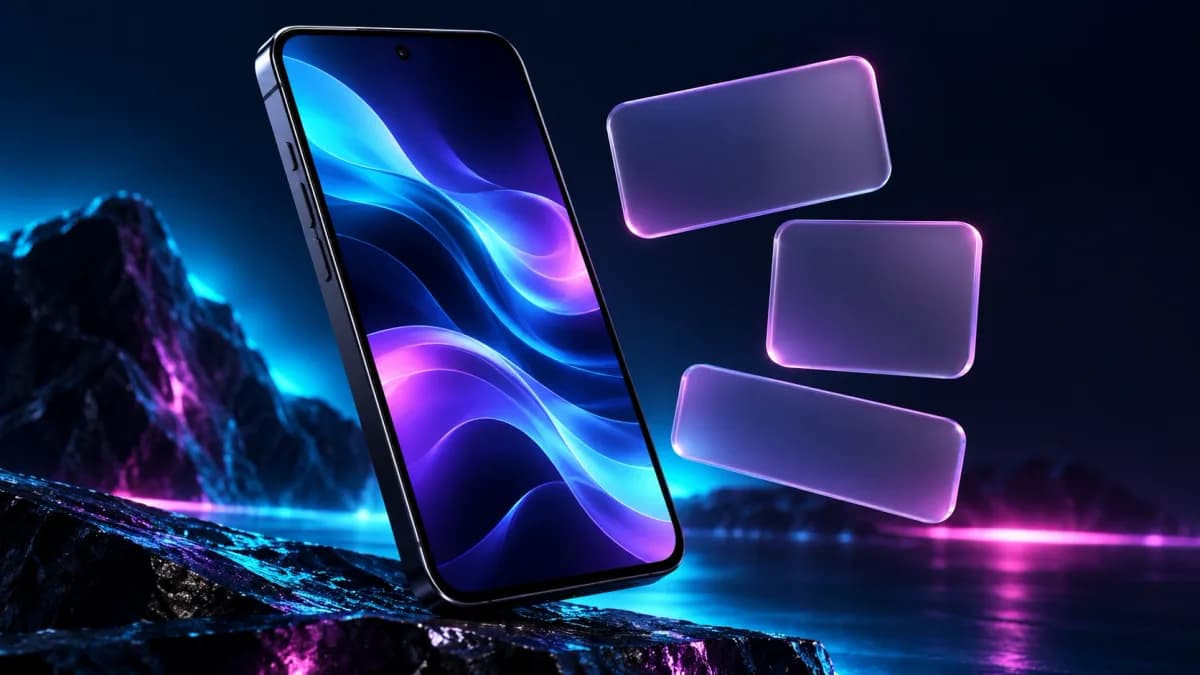
Start with the screen, not the thumbnail
A wallpaper can look beautiful in a gallery and awkward behind a clock. Choose your composition based on what will sit on top of it. The preview is the decision point; an attractive standalone image is only the beginning.
Give important text some breathing room
On the lock screen, place the main subject away from the clock and notification area. On the home screen, leave a quieter region for labels and icons. High contrast helps: pale text is easier to read over a darker, less detailed area than over a bright, busy edge.
Set it on iPhone
Apple’s guide explains choosing a wallpaper through Settings and customizing the lock screen. Use the live preview to position the image before committing. The available controls depend on the iOS version and image; do not assume every effect appears for every picture.
Set it on a Pixel phone
Google’s help describes wallpaper and style controls for Pixel phones. Open the device’s wallpaper settings and review the available crop and style controls. Other Android brands may use different menu names, so follow the help for your actual device.
Check the result in real use
- Look at a screen with notifications, not only a clean preview.
- Open your busiest home-screen page and check every label.
- Try a simpler crop if the subject competes with everyday controls.
- Keep the original download so you can change the crop later.
Start with Aurora Drift for atmospheric space, or Liquid Orbit for a stronger abstract focal point. Our files are ordinary JPG downloads; no wallpaper app or account is needed.
Sources & editorial notes
Based on official documentation checked October 28, 2026. No hands-on testing or performance claims are implied. Product details can change.
Independent picks, clearly explained. Affiliate links, when present, are labeled and may earn GuidePebble a commission. How we’re supported.